
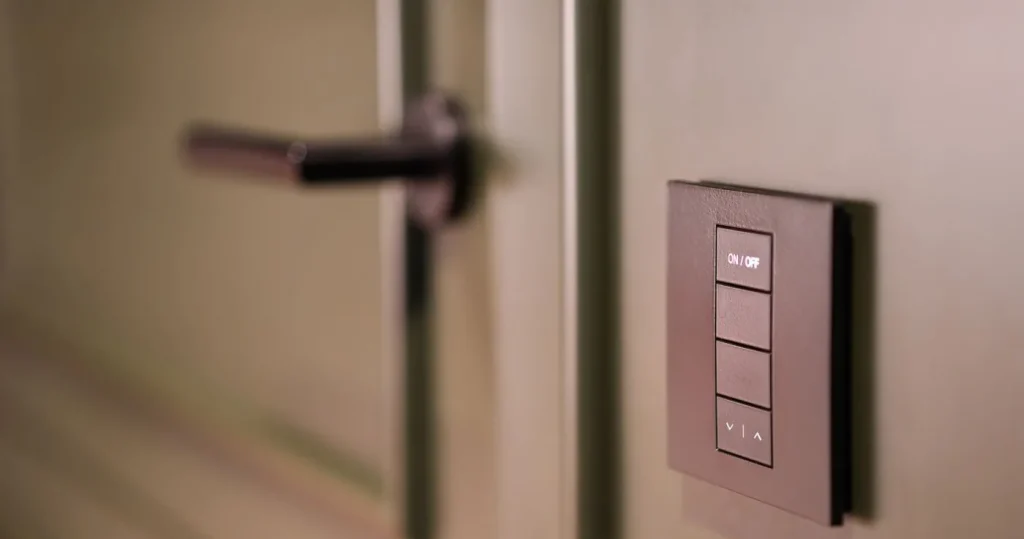
How to use smart switch hardware well comes down to five habits after the electrician leaves: pair it to one app, name every gang properly, link one voice assistant, build two or three scenes and schedules you will actually use, and know what the wall button does when the internet does not. This guide is for Singapore homes that already have smart switches on the wall, or are about to. It covers app pairing, voice control, scenes, schedules, the physical button, what keeps working when the WiFi or the hub drops, and how to give family members, a helper or a tenant control without handing over your own login. Wiring is not covered here; that is a job for the installer before any of this starts.
What you have on the wall after the install
Before opening any app, stand in front of the plate and learn what it is. A typical Singapore smart switch is a 1 to 4 gang plate in the standard 86 mm box, and each gang is one circuit: ceiling light, downlights, fan, fan light. Some plates have a status LED per gang, some a backlight that glows when off so you can find it at night. A 20A power switch for the water heater looks similar but switches a much bigger load.
Three questions to ask the installer before they pack up, because they decide everything after:
- Which radio: WiFi (talks straight to your router) or Zigbee (talks to a hub). A Matter switch may use WiFi or Thread.
- Which app holds it: the brand app (Aqara Home, Smart Life, Tapo and so on), and whether it is also linked to Apple Home, Google Home or SmartThings.
- Which gang is which: write it down, or better, have it labelled in the app on the day.
If the switches were fitted as part of a Roen smart switch Singapore job, this handover is done with you: app set up, gangs named, scenes built. If you bought and paired them yourself, the rest of this guide is the handover you did not get.
Pairing the switch to the app
Pairing is a one-time step, and most problems come from three avoidable mistakes.
- Use the right network band. Most WiFi smart switches join 2.4 GHz only. If your router broadcasts one name for both bands, pair with the phone standing near the switch, or temporarily split the bands. Zigbee switches pair to the hub instead, so the hub must be on and within range.
- Put the switch in pairing mode. Usually a long press on one gang until the LED flashes quickly; the exact press is in the leaflet. Do it on a gang you can see, not behind a cabinet.
- Add it in one app first. Pair it in the brand app (or straight into Apple Home or Google Home for a Matter switch), confirm every gang works from the phone, then link other ecosystems. Pairing the same switch into two apps at once is how duplicate devices appear.
Then do the boring part properly: put each switch in a room and name each gang by what it does (“Living ceiling”, “Living downlights”, “Master fan”), not “Switch 1 Gang 2”. Those names become your voice commands, so short and distinct beats clever.
Concrete walls and range
HDB and condo walls are reinforced concrete, and a switch at the far bedroom or the bomb shelter can sit on a weak signal. A WiFi switch that shows offline a few times a day usually has a coverage problem, not a faulty relay; for Zigbee, every mains-powered Zigbee switch also extends the mesh, so they generally get steadier as more are added.
Linking voice assistants
Voice control is the brand app linked to an assistant: Google Home links the brand account (or the Matter device directly), Siri works through Apple Home, and Alexa through the brand’s skill. After linking, the assistant imports your rooms and names, which is why naming came first. If you have not chosen an assistant yet, our comparison of Google Home vs Alexa vs Siri in Singapore sets out the differences for local homes.
Four habits make voice reliable:
- Use the room name the assistant knows: “turn off the bedroom lights” acts on every light in that room, which is usually what you want.
- Do not give two gangs names that sound alike (“fan” and “fan light” is a classic clash); “ceiling fan” and “fan lamp” works better.
- Pick one assistant per household where you can. Two assistants work, but every rename then has to be done twice.
- Run scenes by voice (“Hey Google, goodnight”) rather than calling out circuits one by one.
How to use smart switch scenes for one-tap rooms
A scene sets several circuits at once: one tap or one phrase and the room is where you want it. It is the feature that makes a smart switch worth having over a normal one. Build a few and resist building twenty.
- Home: entrance and living lights on, fan on.
- Movie: ceiling light off, downlights dimmed if the gang is a dimmer, fan on low.
- Goodnight: every light off except a bedside lamp, fan light off, fan left running.
- Away: every light and the water heater off.
A scene can reach beyond the switches. Curtains, the aircon through an IR hub, and smart plugs can all join if they live in the same app. The cleanest result comes from building the scene in whichever app holds the most devices, then exposing it to your voice assistant. A spare gang can trigger a scene too: many switches have a “detached” or “decoupled” mode in which a button stops switching its own circuit and fires a scene instead, which is how a bedside button can turn off the whole flat.
How to use smart switch schedules and automations
A schedule runs a circuit at a set time; an automation runs it when something happens (a door opens, motion at night, everyone leaves). Start with the schedules that pay back from day one:
- Water heater: on before the morning shower, off after. TP-Link’s product page for its Tapo S500 switch describes this kind of feature plainly: “Preset a schedule to automatically manage devices.”
- Auto-off: the store room or bomb shelter light switches itself off after a set time.
- Corridor and porch light: on at dusk, off at a fixed hour. Close to the equator, sunset in Singapore moves little across the year, so a fixed evening time works almost as well as a sunset trigger.
- Away mode: lights cycle in the evening while you travel. Tapo describes its version as one that “Randomly turns devices on and off at different times to give the appearance that someone is home.”
Review schedules twice a year: school holidays and a helper’s new routine are the usual reasons a 6 am heater schedule turns into a wasted hour.
The physical button still matters
A mains smart switch is still a switch, and knowing how to use smart switch buttons is the part most households skip. The button drives the switch’s own relay, so guests, the helper and the grandparents can use it without knowing an app exists. A few behaviours are worth learning:
- Single press toggles the circuit, and the app updates to match.
- Double press or long press can often be assigned to a scene in the app. A long press held for several seconds is usually the reset or pairing gesture, so do not assign anything to that.
- Child lock on some plates disables the button, useful for a water heater gang at a height children can reach.
- Power-on behaviour: most apps let you choose what a gang does when power returns after a trip or a power cut: off, on, or its last state. Set lights to off or last state; set the water heater to off.
If a no-neutral switch flickers the lamp when off or drops off the network, that is a wiring and load question rather than a usage one; our guide to smart switches on HDB wiring without a neutral explains why.
When the WiFi or the hub is offline
This is the question most guides skip, and it decides how much you trust the system. The short answer: the button on the wall keeps working; what fails depends on where each feature runs. Tuya’s help centre, for its own WiFi devices, answers “Can I use the device without the Internet?” with “device connection requires internet access”, so expect a cloud WiFi switch’s app, voice and cloud schedules to stop until the internet returns. Aqara, by contrast, describes its Hub M3 as running “local automation capabilities that can operate independently of internet connection”, while warning that “Some Aqara Home automation may require Internet and cloud service to function.” Google describes Matter devices as “designed to work locally over your existing home network”, with commands from outside the home going through the cloud.
| Feature | Internet down, WiFi up | Router or WiFi down | Zigbee hub off |
|---|---|---|---|
| Wall button | Works | Works | Works |
| App at home | Local-control apps and Matter work; cloud-only apps do not | No | No for Zigbee switches; WiFi switches unaffected |
| App away from home | No | No | No for Zigbee switches |
| Voice assistant | Generally no | No | No for Zigbee switches |
| Schedules | Run if stored on the switch or hub; cloud schedules do not | Only schedules stored on the switch itself | Only schedules stored on the switch itself |
| Automations with sensors | Hub-local automations run; cloud automations do not | Zigbee hub-local automations may run if the hub is on its own power | No |
Behaviour varies by brand and firmware, so test your own system once: pull the router’s power before a schedule is due and see what fires. The design principle behind keeping more of the home local is covered in our post on local vs cloud smart home control.
Family members, helpers and guests
Do not share your own app login. Every major platform has a proper way to invite people, and it lets you take access back later.
- Google Home: invite someone as a Home Member with a role. Google’s help page gives two, Admin and Member, and says Members cannot “add, manage, or remove people,” delete the home, or add, remove or share devices. Children under 13 join as Members by default.
- Apple Home: invite people from the Home app and set two permissions per person: “Control Accessories Remotely” and “Add and Edit Accessories”. Remote control and automations also need a home hub (HomePod or Apple TV); Apple’s page says a hub lets you “control your smart home accessories while you’re away from home.”
- Brand apps: most have a home or family sharing screen that adds another account to the same home. Use it rather than logging in on a second phone with your password.
Showing everyone how to use smart switch controls takes ten minutes once the roles are set. For a domestic helper, a member role with control but no editing is usually right: she can run scenes and switch circuits, but cannot delete devices or change schedules. For a tenant, put the tenant’s switches in a separate home or room and remove access at the end of the lease. Elderly parents often do best with the wall button and one voice phrase, nothing more.
First fortnight troubleshooting
- App shows the switch offline but the button works: coverage or router problem. Check the router has not changed channel or password; a new broadband router is the most common cause, because every WiFi switch has to be re-paired to the new network name.
- Voice says the device is not responding: the brand app is fine but the link to the assistant has expired. Unlink and relink the brand account in the assistant app.
- Scene turns on the wrong light: a gang was renamed in one app but not the other. Rename at the source and sync.
- Schedules run an hour off or not at all: check the home’s time zone in the app is Singapore.
- Light turns on by itself after a power cut: power-on behaviour is set to “on”.
Still weighing whether switches or bulbs suit a particular room? Our smart switch vs smart bulb comparison sets out where each one wins.
Frequently asked questions
Does a smart switch still work as a normal switch?
Yes. A mains smart switch drives its own relay, so the button on the wall switches the circuit with or without an app, the internet or a hub. The app simply updates to show the new state.
What happens to my smart switch if the WiFi goes down?
The wall button keeps working. App control and voice stop for cloud-based WiFi switches; Zigbee switches on a hub with local automations, and Matter devices on the home network, keep more of their functions while the internet is out.
Do I need to re-pair smart switches when I change broadband router?
WiFi switches, usually yes, unless the new router uses exactly the same network name and password. Zigbee switches talk to the hub, so only the hub needs to join the new network.
How do I let my family or helper control the smart switches?
Invite them from the app as a member: Google Home and Apple Home both have proper invitations with permissions, and most brand apps have a family sharing screen. Avoid sharing your own login, so access can be removed later.
Can I use Google Home, Alexa and Siri on the same smart switch?
Often, yes: the brand app can link to more than one assistant, and Matter allows one device in several apps at once. Each assistant keeps its own names, so renaming has to be done in each.
Can a smart switch button run a scene instead of its own light?
On many models, yes. A detached or decoupled mode makes the button send a command instead of switching its circuit, so it can fire “Goodnight” or control a light on another circuit.
Switches that work from the wall, the app and your voice from day one
Roen’s team wires the switches, then sets up the app, names every gang, links your voice assistant, builds your scenes and schedules and invites the household before leaving, so nobody has to work it out at midnight.